
How Do I Know What Operating System My Computer Is Using? A Simple Guide

Understanding your device’s software helps you use it well. The operating system manages hardware and software resources. Knowing its version helps when you troubleshoot, upgrade, or install applications.
This guide shows you how to identify your OS. Many users struggle to find this information quickly. It covers Windows, macOS, Linux, Chrome OS, and mobile devices with clear steps.
Each version has a different interface, so one answer cannot fit everyone. To find operating system on computer, use built-in settings, system tools, or command line commands. You can check OS version confidently without advanced technical skills.
Key Takeaways
- Identify your OS to troubleshoot effectively.
- Different OS versions have unique interfaces.
- Built-in tools simplify the process of checking your OS version.
- Confidence in tech skills can be built through clear instructions.
- Resources like step-by-step guides enhance understanding.
Why Knowing Your Operating System Matters
Knowing your operating system helps software run well and keeps your device secure. Software compatibility OS checks help you choose suitable apps and keep your system efficient.
Software Compatibility and Application Support
Every application, including productivity software like Microsoft Office and creative software such as Adobe Photoshop, has operating system requirements. Windows software will not run on a Mac without compatibility layers or emulators. Installing incompatible software can waste time and cause frustration.
Knowing your operating system allows you to:
- Choose applications that are compatible with your OS.
- Avoid installation errors and software conflicts.
- Maximize the performance of your installed applications.
Security Updates and System Performance
Older operating systems often stop receiving security updates, leaving devices open to malware and cyberattacks. Microsoft ended support for Windows 7 in January 2020. Users on that platform no longer receive critical security updates, which can expose their data and systems to various threats.
By knowing your OS, you can:
- Ensure you are using a version that receives regular security patches.
- Maintain optimal system performance through updates.
- Protect your personal information from potential breaches.
Getting Accurate Technical Support
When you contact technical support, the first question is often, “What operating system are you using?” Giving technicians accurate OS information helps them diagnose issues quickly and provide precise solutions. This saves time and reduces frustration during troubleshooting.
Understanding your operating system is more than a trivial task; it is a basic skill for responsible computer ownership. It improves software compatibility, protects system security, and streamlines technical support.
| Aspect | Importance | Consequences of Ignorance |
|---|---|---|
| Software Compatibility | Ensures applications run smoothly | Wasted time and resources |
| Security Updates | Protects against vulnerabilities | Increased risk of malware |
| Technical Support | Facilitates quick problem resolution | Extended downtime and frustration |
How Do I Know What Operating System My Computer Is: Quick Methods Overview
Finding your computer’s operating system is easy when you know where to look. These methods include graphical menus and command line tools, so you can choose what works best.
Using the Built-In Settings Menu
Every modern operating system has a settings menu with system information. Follow these steps:
- Windows: Open the Settings app and navigate to System. Here, you can view your OS version.
- macOS: Click on the Apple menu and select About This Mac to see your OS details.
- Chrome OS: Access the settings panel from the system tray to find your OS version.
This user-friendly method suits people who prefer a graphical interface.
Using the System Information Tool
Use a dedicated system information tool when you need more detail.
- Windows: The System Information tool (msinfo32) provides comprehensive details about your OS and hardware.
- macOS: The System Report offers extensive insights into your system’s specifications.
- Linux: Various system profilers can be used to gather detailed information about your OS and hardware.
These tools show the OS name, hardware specifications, and driver versions.
Using Command Line Commands
If you know text commands, a command line OS check can identify your system quickly.
- Windows: Type
winverin the Run dialog to see your OS version. - macOS: Use
sw_versin the Terminal to display your OS details. - Linux: Commands like
uname -aorcat /etc/os-releaseprovide instant OS version information.
This efficient method gives users quick, no-frills access to system information.
You can identify your operating system through settings, a system information tool, or command line commands. Choose the method that feels most comfortable.
How to Identify Your Operating System on Windows 11
Knowing your operating system on Windows 11 helps you manage your computer. It can help when you install software or fix problems.
Step 1: Open the Settings Application
Click the Start button at the bottom left of your screen. Or press Windows key + I to open the Settings application quickly. These settings help you manage system options and configurations.
Step 2: Navigate to the System Section
When Settings opens, select System in the left navigation pane. This section usually appears first and includes key performance and configuration options.
Step 3: Review the About Page Details
Scroll through System and select About. This page shows details about your Windows 11 operating system. It lists the edition, such as Windows 11 Home or Windows 11 Pro, and version 23H2. The system type shows whether it is 64-bit or 32-bit.
A Windows 11 OS check through the operating system settings is the most reliable method. It provides official, Microsoft-verified information. For a faster option, type “About your PC” into the Start menu search bar. This opens the same information directly.
How to Identify Your Operating System on Windows 10
If you use Windows 10, you can identify your operating system in a few simple steps. This helps your system run smoothly and stay up to date. Use the steps below for a Windows 10 OS check.
Step 1: Access the Start Menu
Click the Start button in the lower-left corner of your screen. You can also press the Windows key on your keyboard. The Start Menu opens with options for navigating your system.
Step 2: Open System Settings
You have two ways to open the system settings.
- Click the gear icon to open the Settings app. From there, navigate to System and then select About.
- Right-click the Start button and select System from the context menu. This will take you directly to the classic system properties Windows interface.
Step 3: View Your Windows 10 Specifications
On the About page or System window, you will see essential information about your operating system. This includes:
| Detail | Description |
|---|---|
| Windows Edition | Home, Pro, Enterprise, or Education |
| Version Number | Such as 22H2 |
| OS Build Number | The specific build of your OS |
| System Type | 32-bit or 64-bit |
A Windows 10 OS check matters because Microsoft announced Windows 10 support ends October 14, 2025. After that date, users will need to upgrade to Windows 11 to keep receiving security updates.
How to Identify Your Operating System on Windows 8 and 8.1
A Windows 8 OS check is simple on Windows 8 or 8.1. Although less common today, these versions still matter to many users. Checking your OS helps confirm software and security update compatibility.
Step 1: Access the Charms Bar
First, open the Charms Bar by moving your mouse to the screen’s top-right or bottom-right corner. On a touchscreen, swipe from the right edge. This hidden menu offers quick access to settings and features.
Step 2: Open PC Settings
When the Charms Bar appears, click the Settings charm, shown as a gear icon. At the panel’s bottom, select Change PC settings. This opens the modern PC Settings interface for browsing system options.
Step 3: Review System Details
In PC Settings, open the PC and devices section. Then select PC info. You will see your Windows edition, version, and system type.
This Windows 8 OS check shows your computer’s specifications and helps you plan upgrades.
Windows 8 ended support in January 2016, and Windows 8.1 ended support in January 2023. Users on these platforms should consider upgrading to a supported OS.
A Windows 8 OS check gathers computer system information and starts upgrade planning. It helps users understand their current hardware and software.
How to Identify Your Operating System on Windows 7
To identify my operating system, follow these simple Windows 7 steps. This Windows 7 OS check confirms whether your computer runs Windows 7. Many users still rely on this older system.
Step 1: Open the Start Menu
Click the Start button in the screen’s bottom-left corner. It has the familiar Windows orb logo. The Start Menu shows available programs and options.
Step 2: Right-Click on Computer
In the Start Menu, find the Computer option in the right-hand column. Right-click Computer to open its context menu.
Choose Properties from this menu. The System window will open.
Step 3: View System Properties
The System window shows key information about your operating system. Look for these details:
- Windows Edition: This indicates whether you are using Windows 7 Home Premium, Professional, or Ultimate.
- Service Pack Level: This shows the latest updates installed on your system.
- System Type: You will see whether your system is 32-bit or 64-bit.
- Processor and Memory: This section displays your computer’s processor type and the amount of installed RAM.
Windows 7 ended support on January 14, 2020. It no longer receives security updates and may face threats. If you identify your operating system as Windows 7, consider upgrading.
Windows 11 or a Linux distribution can improve security and performance.
“Upgrading your operating system is essential for maintaining security and accessing new features.”
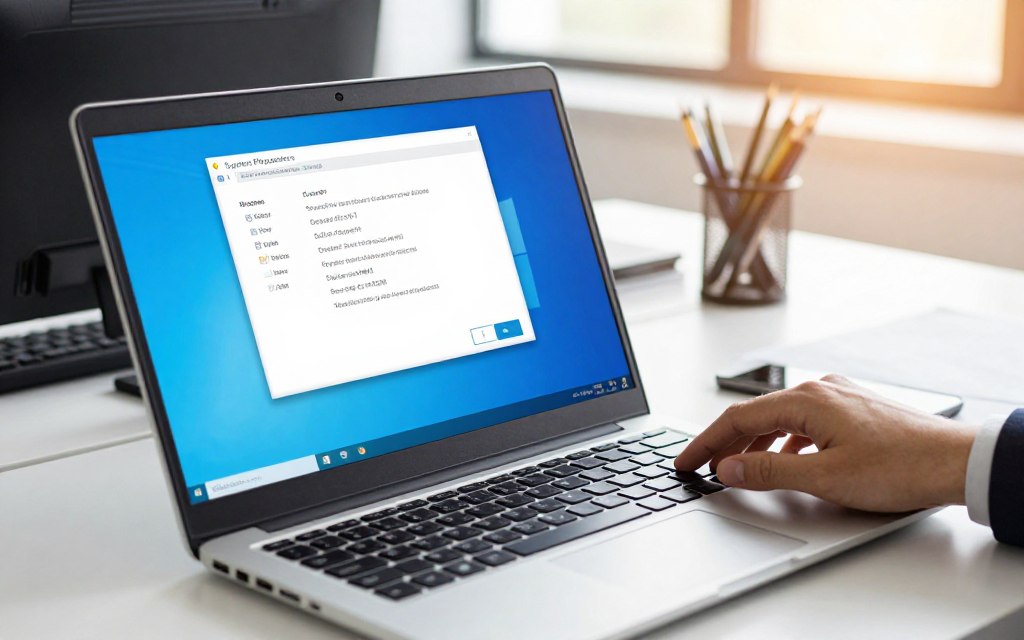
| Feature | Windows 7 | Windows 10 | Windows 11 |
|---|---|---|---|
| Support Status | End of Support | Active Support | Active Support |
| Security Updates | No | Yes | Yes |
| User Interface | Classic | Modern | Streamlined |
| Performance | Moderate | Improved | Optimized |
These steps can quickly show whether your computer runs Windows 7. If you have questions or need help, seek assistance.
How to Identify Your Operating System on macOS
To check your computer’s macOS version, follow these simple steps. Knowing your version helps ensure software compatibility and access to the latest updates.
Step 1: Click the Apple Menu
Click the Apple logo in the top-left corner of your screen. A dropdown menu will open with several options.
Step 2: Select About This Mac
Choose About This Mac from the dropdown menu. It is usually the first option listed. A new window will show important information about your Mac.
Step 3: Review macOS Version Details
The window shows your macOS version name, such as macOS Sonoma or macOS Ventura, and its version number. It also lists your Mac model, processor, and memory.
For more details, click the More Info or System Report button. You will see system information, including the exact build number and hardware specifications.
Understanding your macOS version identification matters. Apple releases major operating system updates each year, and each version has different features and compatibility needs. Your exact version shows whether your Mac supports new updates and specific applications.
In summary, macOS version identification is simple and helps keep your system updated and working well. For more information on macOS, visit this link.
How to Identify Your Operating System on Linux
The terminal makes Linux OS detection simple for Linux users. It gives quick access to key system details. Follow these steps to identify your OS version.
Step 1: Open the Terminal Application
Open Terminal from your applications menu, often under “System Tools.” Or press Ctrl + Alt + T on most Linux distributions to launch it quickly.
Step 2: Run System Identification Commands
Use these commands to collect details about your Linux OS:
- cat /etc/os-release: This command displays the distribution name, version, and ID in a structured format.
- uname -a: This command shows the kernel version, system architecture, and other core system information.
- lsb_release -a: This command provides distribution-specific details, including the release number and codename.
Step 3: Interpret the Output Information
After running the commands, review the output. Use these guidelines to understand it:
| Command | Output Information | Details |
|---|---|---|
| cat /etc/os-release | Distribution Name | Identifies the Linux distribution (e.g., Ubuntu, Fedora). |
| uname -a | Kernel Version | Shows the version of the Linux kernel running. |
| lsb_release -a | Release Number | Provides the specific version of the distribution. |
This information shows your Linux distribution, version, and kernel details. This terminal command OS method supports Linux OS detection across nearly all distributions, regardless of desktop environment.
How to Check Your OS on a Chromebook
On a Chromebook, you can quickly check your Chrome OS version. This helps keep your device updated and working well. Follow these steps to find it.
Step 1: Click on the System Tray
Find the system tray in the bottom-right corner of your screen. It shows the time, battery status, and network connection. Click it to open more options in Chrome OS.
Step 2: Open Chrome OS Settings
When the system tray opens, find the gear icon for the Settings application. Click it to open the Chrome OS Settings menu.
Step 3: Find Chrome OS Version Information
In Settings, scroll to the About Chrome OS section, usually at the bottom of the left-hand navigation menu. There, you can see your current Chrome OS version, such as ChromeOS 125 or ChromeOS 126. You can also check for updates and view additional system details.
Knowing your Chrome OS version matters because Google releases updates about every four weeks. These updates help keep your device secure and running efficiently. For more details, type chrome://version into the Chrome browser’s address bar to view a detailed system overview, including platform and firmware versions.
How to Find Your OS Version on Mobile Devices
Knowing your mobile device’s operating system version supports good performance and app compatibility. Whether you use an iPhone, iPad, Android smartphone, or tablet, checking the OS version helps troubleshoot problems.
It also helps keep your applications running smoothly.
Checking iOS on iPhone and iPad
To perform an iOS version check on your iPhone or iPad, follow these steps:
- Open the Settings app on your device.
- Tap on General.
- Select About.
Here, you will find your iOS version number (e.g., iOS 17.5 or iPadOS 17.5), device model name, and other hardware information. Knowing your iOS version matters because many apps need a minimum version to install and run properly.
Checking Android on Smartphones and Tablets
On Android devices, steps can vary by manufacturer, but they usually follow this pattern:
- Open the Settings app.
- Scroll down and tap on About phone or About tablet.
- Look for the Android OS version entry.
On Samsung devices, go to Settings > About phone > Software information. On Google Pixel devices, go to Settings > About phone > Android version.
Knowing your Android OS version matters because Android fragmentation means devices may run different versions. App developers often target specific Android versions for their applications.
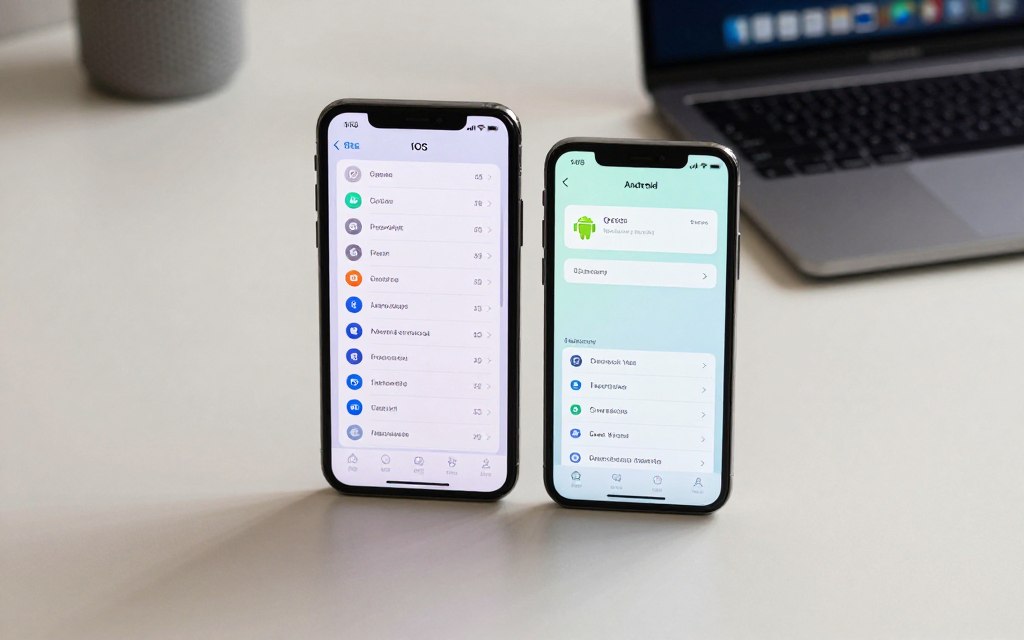
| Device Type | OS Version Check Steps | Notes |
|---|---|---|
| iPhone/iPad | Settings > General > About | Find iOS version and device model. |
| Android | Settings > About phone/tablet | Check for Android OS version. |
Knowing your mobile device’s operating system version helps maintain good function and app compatibility. Regular checks can help you avoid problems and improve your overall user experience.
Troubleshooting Tips When You Can’t Identify Your OS
If you cannot identify your operating system, OS troubleshooting tips can guide you through the process. System issues may block access to the settings you need. These solutions address common problems.
What to Do When Settings Won’t Open
When the Settings application will not launch, system corruption, malware infections, or hardware failures may cause the problem. Boot into Safe Mode. This mode loads a minimal OS version and may help you access needed settings.
For Windows users, hold the Shift key while clicking Restart to enter Safe Mode. For macOS users, hold the Shift key during startup. This helps you troubleshoot without interference from third-party applications.
Using Alternative Diagnostic Tools
If you still cannot identify your OS, try alternative diagnostic tools. Windows users can open the System Information tool by typing msinfo32 into the Run dialog (Windows key + R). This tool shows detailed system configuration information.
For macOS users, the System Report appears in the About This Mac menu. Linux users can boot from a live USB drive and run terminal commands, even when the installed OS is corrupted. These tools can reveal clues about your OS.
When to Seek Professional Help
Sometimes, identifying your OS remains difficult despite your best efforts. If all methods fail, seek technical support OS specialists. This matters if your system will not boot or malware may have compromised your OS.
Professional technicians have tools and expertise to solve problems beyond self-help guides. Asking for help is safer than causing further complications.
Conclusion
Understanding your operating system matters in today’s tech-driven world. Whether you perform a Windows OS version check or check your mobile device OS, this knowledge improves your computing experience. Identifying your OS helps ensure software compatibility, timely security updates, and accurate technical support.
These methods help you find your operating system on a desktop, laptop, or mobile device. Built-in settings menus and command line commands offer reliable ways to find the information you need.
Bookmark this guide for future reference, and share it with friends or family who need help identifying their OS. In today’s increasingly digital landscape, understanding your operating system remains essential. This knowledge helps you make informed choices about software installations, security measures, and hardware upgrades.




Leave a Reply