
A Picture of a Computer System: Understanding the Main Parts and How They Work
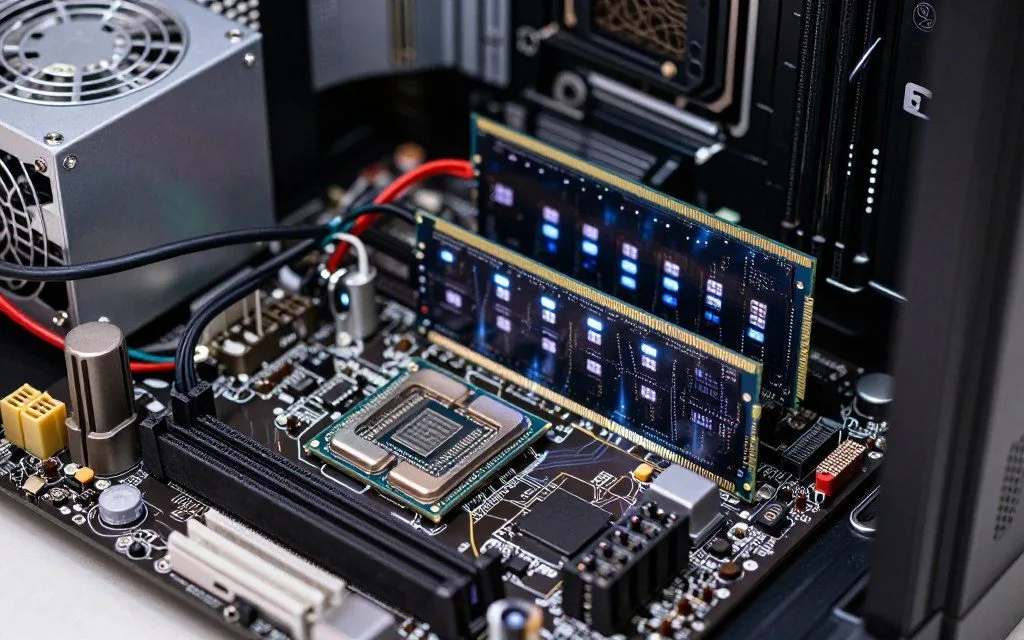
Today, understanding computer system components is essential in our digital age. A picture of a computer system, such as a diagram or photograph, helps explain complex hardware details. This guide covers the central processing unit, memory modules, storage drives, and other main parts.
Each component has an important role in the machine’s overall function. Students, IT professionals, and everyday users can learn how these parts connect. This knowledge helps them build, upgrade, or troubleshoot desktops and strengthens their computer hardware basics.
Looking at each part shows why a complete view matters for maintenance and better performance. This understanding empowers users and builds confidence when handling modern computing’s complexities.
Key Takeaways
- Visual guides help simplify complex hardware concepts.
- Understanding components is crucial for effective troubleshooting.
- Each part of a computer plays a specific role in its function.
- A holistic view aids in maintenance and performance optimization.
- Knowledge of hardware basics empowers users in their computing tasks.
1. What a Picture of a Computer System Reveals About Modern Computing
A computer system’s layout shows the advances that shaped modern computing. Understanding computer components helps users and professionals see how each part works. This section examines computer architecture evolution and why each component matters.
The Evolution of Computer Architecture
Over the decades, computer architecture changed greatly. Early systems used bulky vacuum tubes and transistors; integrated circuits gradually replaced them. This change improved efficiency and reduced size, helping create multi-core processors.
Key milestones included the von Neumann architecture and PCI bus, which improved connections between components.
Modern computing uses modular designs, so users can upgrade systems easily. This evolution reflects performance gains and the industry’s shift toward standardization, making technology more accessible.
Why Understanding Components Matters for Users and Professionals
Knowing computer parts helps people diagnose hardware failures and choose compatible upgrades. For users, this knowledge supports informed purchases and reduces costly mistakes. System builders and IT administrators use it to understand interactions, improve performance, and manage thermal output.
A visual computer system reference is both educational and practical. It helps users and professionals navigate modern computing with confidence.
| Component | Function | Importance |
|---|---|---|
| CPU | Processes instructions | Central to computing performance |
| RAM | Stores temporary data | Affects speed and multitasking |
| Motherboard | Connects all components | Ensures compatibility and communication |
| GPU | Renders graphics | Essential for gaming and design |
| Storage | Holds data permanently | Determines capacity and speed |
2. The Central Processing Unit (CPU) – The Brain of the Computer
The central processing unit, or CPU, acts as the computer’s brain. It executes commands, processes data, and supports many CPU functions. Learning about these tasks shows why this component matters to computer performance.
Core Functions and Operations of the CPU
The CPU follows the fetch-decode-execute cycle, which has three main steps. This cycle helps the processor handle each instruction in order.
- Fetch: The CPU retrieves instructions from memory.
- Decode: It interprets the fetched instructions.
- Execute: The CPU performs the required operations.
The CPU includes the arithmetic logic unit (ALU) and the control unit. The ALU manages arithmetic and logic, while the control unit directs processor operations.
Performance depends on clock speed, core count, and thread count. Higher clock speeds process data faster, while multiple cores handle tasks at once. Cache memory levels (L1, L2, L3) reduce delays and improve efficiency.
Leading CPU Manufacturers: Intel and AMD
Two major companies lead the CPU market: Intel and AMD. Each offers processors designed for different user needs.
Intel Core Series Processors
Intel’s Core series, also called Intel Core, includes processors from Core i3 to Core i9. These processors use Hyper-Threading and Turbo Boost to improve performance across applications. Non-F SKUs also include integrated graphics for everyday tasks.
AMD Ryzen Series Processors
AMD’s Ryzen series includes options from Ryzen 3 to Ryzen 9. These AMD Ryzen processors offer strong multi-threaded performance and simultaneous multithreading (SMT). They provide good value for gamers and content creators.
When choosing Intel or AMD, consider gaming, content creation, or productivity. Each brand has strengths that suit different applications.
3. Memory Components: RAM and ROM
Memory is vital to every computer because it affects how well the system handles tasks. Two main types are Random Access Memory (RAM) and Read-Only Memory (ROM). Learning their roles helps users understand overall system performance.
Random Access Memory (RAM) and Its Role in Performance
RAM is a type of volatile memory that temporarily stores data while applications run. When you turn off your computer, RAM loses its information. RAM capacity, measured in gigabytes (GB), affects RAM performance. Common configurations include 8GB, 16GB, and 32GB, and higher capacities support multitasking and demanding applications.
RAM speed, measured in megahertz (MHz), also matters. Faster RAM can make applications more responsive, especially during gaming and professional workloads. Channel settings—single, dual, or quad—change data transfer rates; dual-channel setups can double bandwidth and improve performance.
DDR4 and DDR5 Memory Standards
When comparing DDR4 vs DDR5, consider each standard’s features. DDR4 has been the standard for several years, with decent performance and efficiency. However, the newer DDR5 offers higher data transfer rates and better power efficiency than DDR4. DDR5 uses a different physical notch for specific motherboards, and upgrades can boost performance for high-end gaming and professional applications.
Read-Only Memory (ROM) and Firmware Storage
Unlike RAM, Read-Only Memory (ROM) is non-volatile and keeps data when the computer is off. ROM mainly stores ROM firmware, including the BIOS or UEFI, which starts hardware during boot. This foundational software is critical for proper computer function.
Modern systems often use flash memory for firmware updates, letting users improve systems without replacing hardware. Understanding RAM and ROM differences helps users optimize performance. For more information on these memory types, check out this comparison of RAM and ROM.
4. Storage Devices: HDDs, SSDs, and Modern Alternatives
Storage devices shape how we manage and access computer data. They hold the operating system, applications, and personal files. Knowing storage options helps users improve their computing experience.
Hard Disk Drives (HDDs) and Their Continued Relevance
Hard Disk Drives, or HDD storage, have supported computing for decades. They use spinning magnetic platters and read/write heads to store data. Although newer technologies exist, HDDs offer large capacities at low cost per gigabyte.
HDDs work well for bulk storage, including media libraries and backups. They are slower than Solid State Drives (SSDs), but their low price suits capacity-focused users.
Solid State Drives (SSDs) for Faster Performance
Solid State Drives changed storage by using NAND flash memory with no moving parts. This design speeds boot times, file transfers, and application loading compared with traditional HDDs. Users gain improved SSD performance and a more responsive system.
When comparing SATA SSDs with HDDs, the speed difference is clear. SSDs read and write data much faster, especially during tasks needing quick data access.
NVMe Technology and M.2 Drive Form Factors
NVMe (Non-Volatile Memory Express) marks a major step in storage performance. This protocol uses flash storage and PCIe lanes to provide higher throughput than SATA connections. The compact, card-like M.2 drive plugs into the motherboard for faster data transfers.
Common M.2 lengths, such as 2280, fit many devices and suit modern computer setups. With NVMe M.2 technology, users can reach their SSDs’ full speed, benefiting gamers and professionals.
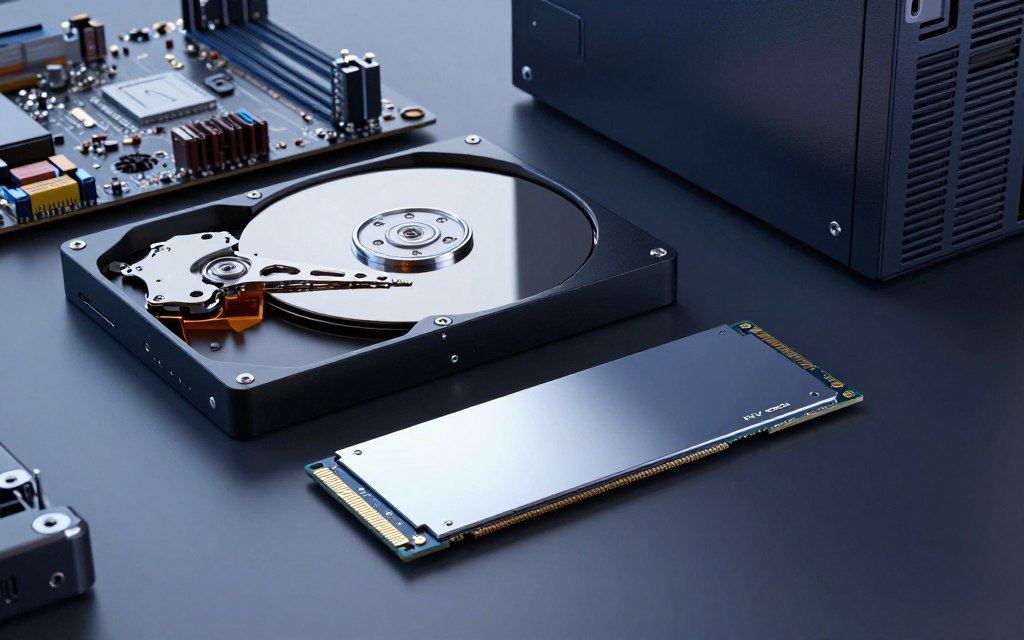
Understanding HDDs, SSDs, and NVMe M.2 drives helps users improve computer performance. Each offers unique benefits, helping users balance speed, capacity, and cost for their needs.
5. The Motherboard: Connecting Everything Together
The motherboard is a computer’s backbone. It joins essential parts into one working system and manages data flow between the CPU, memory, and peripherals. Learning its key motherboard components helps explain how computers operate.
Key Components Found on the Motherboard
The CPU socket holds the processor securely and sets CPU and motherboard compatibility. Nearby, RAM slots (DIMM) hold memory modules. More RAM usually improves performance, especially during multitasking.
The PCIe expansion slots let users add dedicated graphics cards and other expansion cards. These cards expand system capabilities. For storage, SATA ports connect hard drives and SSDs, while M.2 slots support NVMe drives for ultra-fast data access.
The motherboard also houses the chipset, which manages communication among the CPU, memory, and peripherals. The VRM (voltage regulator module) supplies stable power to the CPU, helping maintain performance under load. Finally, the I/O panel connects external devices, including USB ports and audio jacks.
Popular Motherboard Manufacturers: ASUS, MSI, and Gigabyte
When choosing a motherboard, several manufacturers stand out. ASUS motherboards are known for their ROG (Republic of Gamers) and TUF series. They offer strong power delivery and advanced overclocking features for gamers and enthusiasts seeking top-tier performance.
MSI is another popular choice, especially among gamers. Its motherboards offer strong thermal solutions and user-friendly BIOS interfaces for novice and experienced builders.
Gigabyte offers options for different budgets and performance needs. Known for durability and reliability, Gigabyte motherboards often provide excellent value and remain popular with many users.
Understanding motherboard components also helps match a board to your computing needs. Recognizing reputable manufacturers like ASUS, MSI, and Gigabyte helps you choose the right board.
6. Graphics Processing Unit (GPU): Visual Computing Power
A graphics processing unit (GPU) shapes the visual experience of modern computing. It renders images, videos, and complex 3D graphics. Knowing how a dedicated GPU differs from integrated graphics helps you choose a computer system.
Dedicated GPUs Versus Integrated Graphics
Integrated graphics sit inside the CPU and share system memory. They suit basic tasks, including web browsing and media consumption. Demanding work, such as gaming, video editing, and 3D modeling, needs a dedicated GPU.
- Performance: Dedicated GPUs have their own VRAM and processing cores, offering superior performance compared to integrated graphics.
- Power Consumption: Integrated graphics consume less power, which can be beneficial for laptops and energy-efficient systems.
- Cost: While dedicated GPUs are typically more expensive, they provide a significant performance boost for graphics-intensive tasks.
NVIDIA and AMD Graphics Solutions
NVIDIA and AMD are the two major players in the GPU market. Both offer products for different needs and budgets.
NVIDIA GeForce products include the GeForce RTX series. It offers ray tracing and DLSS (Deep Learning Super Sampling), which improve gaming visuals and performance.
AMD Radeon products include the Radeon RX series. It delivers competitive performance, often with better price-to-performance ratios, and supports FidelityFX Super Resolution.
Consider your workload and budget when choosing a GPU. A dedicated GPU can significantly improve computing, especially when you need high-quality graphics rendering.
7. Power Supply Unit (PSU): Converting Energy for Components
A power supply unit (PSU) affects a computer’s performance and reliability. It changes AC power from the wall outlet into the DC power that components need. Choosing the right PSU helps provide stable power.
When choosing a PSU, check the wattage requirements and total PSU wattage. Add the power draw of the CPU, GPU, and storage drives. Add 20-30% headroom for future upgrades and reliable operation.
Check the 80 Plus efficiency rating too. This system measures how well a PSU changes AC power to DC power at 20%, 50%, and 100% loads. Platinum and Titanium ratings waste less energy as heat, which can lower electricity costs and improve performance.
Several brands make quality PSUs, including Corsair PSU, EVGA, and Seasonic. Corsair PSU models range from budget choices to high-end units with modular cables. EVGA‘s SuperNOVA line has robust warranties and dependable performance; Seasonic is often an OEM leader with exceptional build quality.
8. Input Devices: How We Communicate with Computers
Input devices let us interact with computers. They send commands and data, making digital work smooth and efficient. Knowing these tools helps users choose compatible devices for their systems.
Keyboards and Mice as Primary Input Tools
The computer keyboard and mouse are the most common input devices. Keyboards come in several types. Mechanical keyboards offer tactile feedback and durability, while membrane keyboards are quieter and more affordable for casual users.
Users can choose optical or laser sensors for a mouse. Optical mice suit everyday tasks, while laser mice offer precision for gaming and design work. Ergonomic designs improve comfort and reduce strain during long use.
Scanners, Webcams, and Microphones for Expanded Input
Other input devices also expand computer functions. Scanners digitize physical documents and photos, making electronic storage and sharing easier. A webcam supports video calls and streaming, while Webcams connect people in real time.
A microphone captures audio for voice calls, podcasting, and content creation. Microphones broaden computer interaction through these activities. These devices typically connect through USB, Bluetooth, or wireless dongles for different needs and workflows.
9. Output Devices: Receiving Information from Computers
Output devices shape how we use computers. They turn digital data into forms people can understand. Vibrant displays and clear audio make computing easier and more enjoyable.
Monitors and Displays for Visual Output
For visual output, the computer monitor leads the way. Modern monitors offer features for different needs. Consider these key features:
- Panel Types:
- IPS (In-Plane Switching) panels offer superior color accuracy, making them ideal for graphic design.
- TN (Twisted Nematic) panels are known for their fast response times, perfect for gaming.
- VA (Vertical Alignment) panels provide better contrast ratios, enhancing dark scenes.
- Display Resolution: Common resolutions include:
- 1080p (Full HD)
- 1440p (Quad HD)
- 4K (Ultra HD)
- Refresh Rate: This determines how smooth the visuals appear. Options range from 60Hz to 240Hz.
- Aspect Ratio: Widescreen formats like 16:9 are standard, but ultrawide monitors offer a broader field of view.
Technologies like NVIDIA G-Sync and AMD FreeSync reduce screen tearing. They create a smoother gaming experience.
Printers and Audio Systems for Additional Output
Output is not limited to visuals. Printers and audio systems help us receive information. Knowing the different printer types helps you choose the right option.
- Inkjet Printers: Best for high-quality photo printing.
- Laser Printers: Ideal for high-volume text documents, offering speed and efficiency.
For audio, you can choose stereo speakers, soundbars, or headphones. The right audio system can improve your multimedia experience. Choose wired or wireless equipment based on your setup and preferences.
In summary, output devices complete the computing experience. They let users view data, print documents, and enjoy immersive audio. These tools support gaming, professional design, and everyday tasks.
10. Cooling Systems and Peripheral Connections
Computers need proper cooling systems and strong connections to work well. This section explains cooling parts and ways to connect peripheral devices.
Air Cooling and Liquid Cooling Solutions
CPUs and GPUs produce much heat during use. Without proper cooling, heat can cause thermal throttling or hardware damage. Effective cooling supports performance during demanding tasks.
Air cooling is the most common method and uses aluminum or copper heatsinks. Their fins increase surface area, so heat escapes more easily. With one or more fans, air cooling keeps most systems at reasonable temperatures.
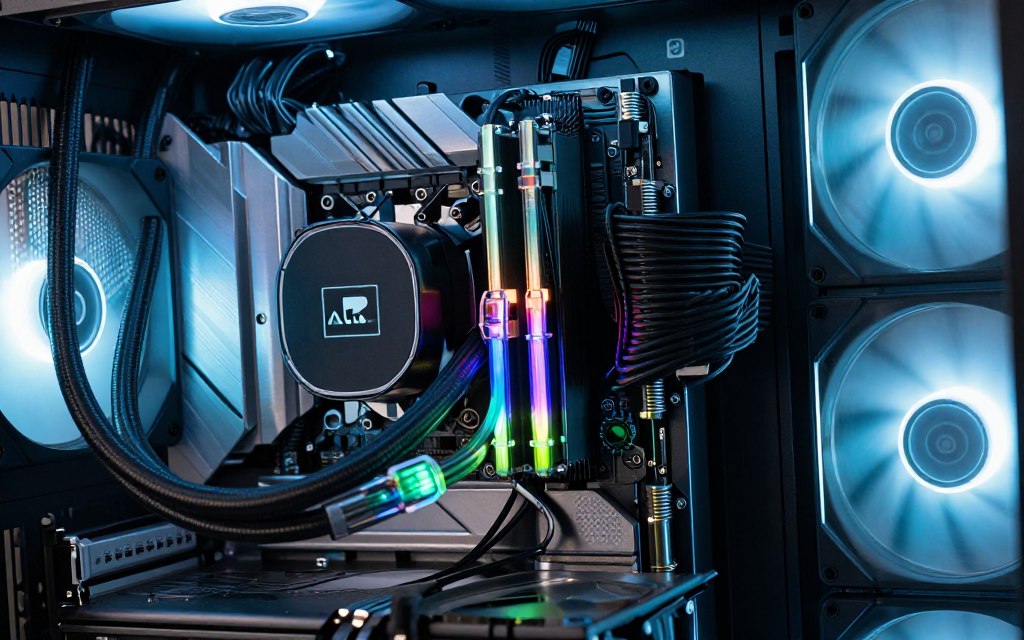
Liquid cooling systems offer better performance through a closed loop with coolant, a radiator, and a pump. They suit overclocked or high-end systems because they handle higher thermal loads. Key factors in liquid cooling include:
- Application of thermal paste for optimal heat transfer
- Case airflow management to enhance cooling efficiency
- Choosing the right radiator size for your system
Network Cards and USB Connectivity Standards
Connectivity is another key part of a computer system. A network interface card (NIC) provides Ethernet connectivity, with options from 1GbE to 10GbE for different bandwidth needs. Wi-Fi cards provide wireless network connections without cables.
USB standards have changed greatly, affecting how devices connect and communicate. USB 2.0 led to USB 3.2 Gen 2×2 and USB4, which offer faster data transfers and better power delivery. Thunderbolt 4 is a high-speed interface that supports various devices with better performance.
Knowing these components helps users find key computer features and improve performance and connectivity. For more information on essential computer hardware, visit this resource.
11. Conclusion
A computer system overview shows how different components work together. Understanding computer parts helps anyone who wants to build a PC or upgrade hardware. Each part, from the CPU to the GPU, supports system performance and function.
Knowing how components work together makes choosing parts less confusing. This knowledge helps users make informed choices about compatibility and performance. For instance, knowing RAM’s importance can guide choices when gaming or doing professional tasks.
As technology evolves, knowing computer hardware remains a valuable skill. Whether you are a gamer, professional, or casual user, understanding these parts improves your computing experience. Explore more resources or use this knowledge in real-world situations to gain full benefits from your computer system.

Leave a Reply